
Why is it useful?
Real-time tracking with OnSite allows you to monitor participant entries, exits, and length of stay, ensuring optimal event management and accurate attendance control.
How does it work?
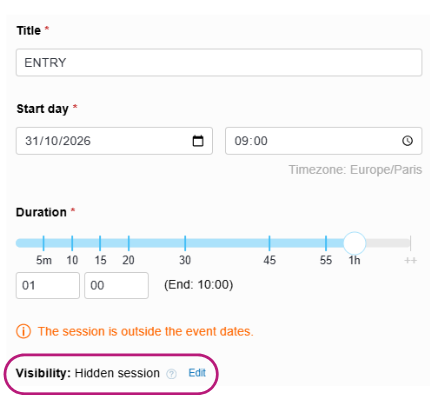
To track participant entry and exit, start by creating two separate sessions: “Entry” and “Exit”.
Go to the Configuration > Programme tab.
Create your “Entry” and “Exit” sessions (refer to the article on creating sessions).

To prevent them from appearing in your programme on the website or in the ConnexMe app, remember to hide these sessions.
On the day of the event, set up two scan zones:
Entry – scan all participants entering the event
Exit – scan all participants leaving the event
Then, depending on the zone, select the “Entry” or “Exit” session on the tablets via the OnSite app.
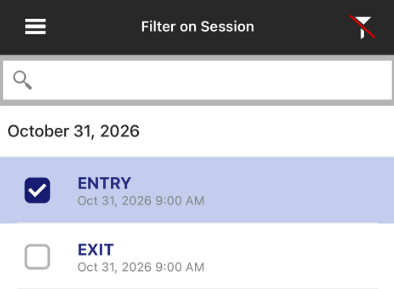
You can choose between two modes:
Check-in: verify that participants are registered for your “Entry” and “Exit” sessions.
Track-in: record attendance without checking registration (recommended).
Important: If you choose the Check-in mode, make sure that all participants are manually registered for both sessions before the event.
Once your tablets are configured with the correct sessions, you can start scanning participants (see the article on OnSite scanning).
Attendance tracking and scan report generation
To obtain a detailed scan report and track participant attendance at your event:
Go to On-site Home > Statistics.
Click on “Detailed report”.
You will find the list of all participants scanned via OnSite.
The columns “Tracking date and time” and “Tracking context” indicate respectively:
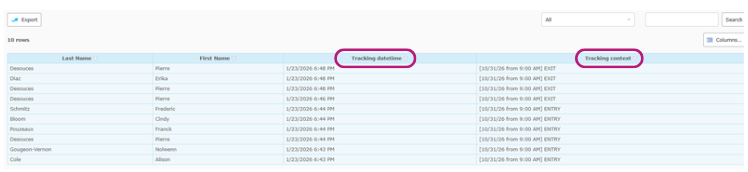
The date and time of each scan
The session associated with the scan
By analysing or exporting this report, you will be able to calculate each participant’s time spent at the event.