
1/ How to create an event and fill in essential information?
Why is this useful?
Do you want to create a new event while keeping simple and centralized management on your Facility platform?
Thanks to the "Create an event" button, you can launch a new event from scratch (or from the template defined on your platform) or duplicate an existing event. In a few clicks, you get a space ready to be configured according to your needs to save you time.
How does it work?
Step 1 : Start creating
Go to the Multi-Events tab.
Click on the Create an event button.
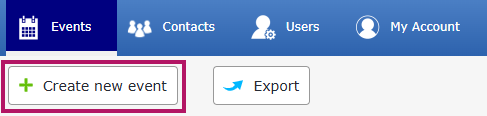
Step 2 : Fill in the sections
1. STARTING POINT
Choose the configuration of your event:
Duplicate an event: this reuses the existing configuration (website, registration forms and email templates).
Note: participants, sub-events and logistical elements are not duplicated.
OR
Start from scratch: this creates an event from the standard Facility model OR the template defined at your platform level
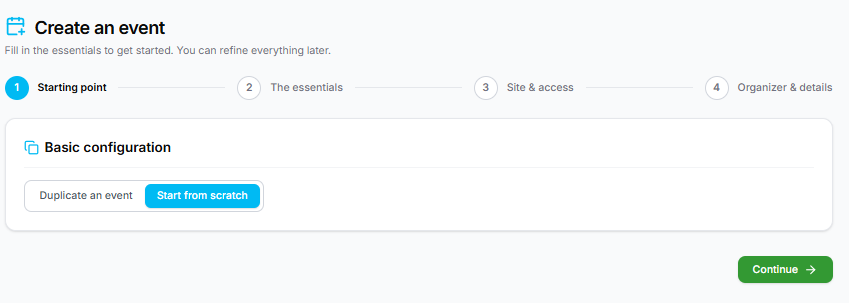
Click Continue to move to the next step.
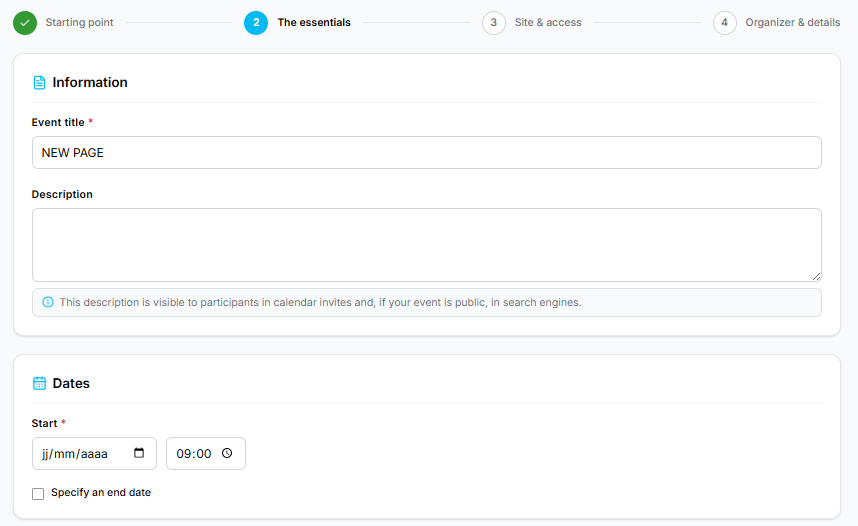
2. THE ESSENTIALS
Fill in the main event information:
Information: enter the title and description.
(Reminder: the description appears in the exported calendar file and on search engines if the site is
indexed).
Dates
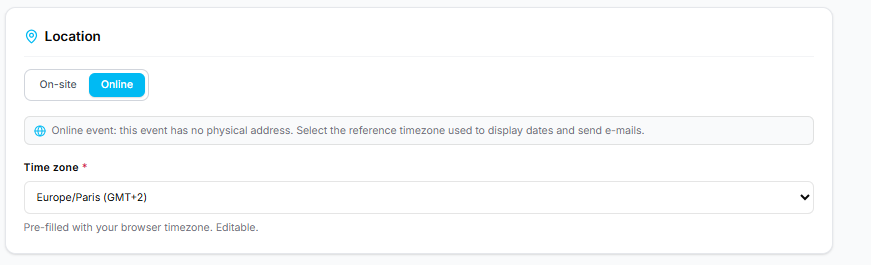
Location
For an in-person event: enter the exact address. The map will automatically display on the site and the time zone will adjust accordingly.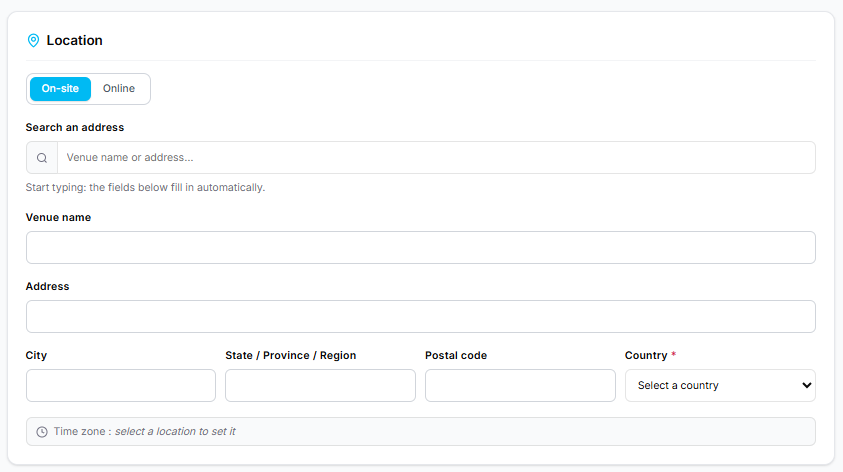
For a virtual event: make sure to manually select the correct time zone.
3. SITE & ACCESS
Configure visibility and email management:
Site visibility:
Public registration : accessible to anyone with the link.
Private registration : accessible only to people who have received an invitation.
Registration site address & corresponding sender email address:
The registration site address corresponds to the clickable link in the emails sent by the platform: it redirects participants to your site.
The sender email address, for its part, is the address visible to your recipients when they receive your messages in their inbox.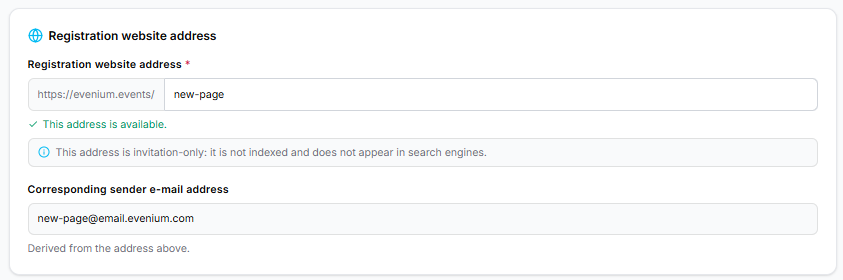
Note :
⚠️Once invitations are sent, the event address or sender email address must no longer be modified. Changing this link will make the old one obsolete: your guests will land on an error page and will no longer be able to access the site.
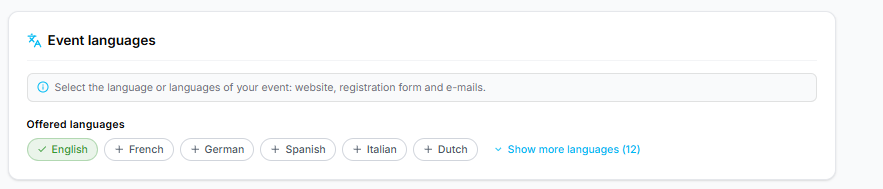
Event languages: define the language(s) of your event. They will automatically apply to the website, form and emails.
4. ORGANIZER & DETAILS
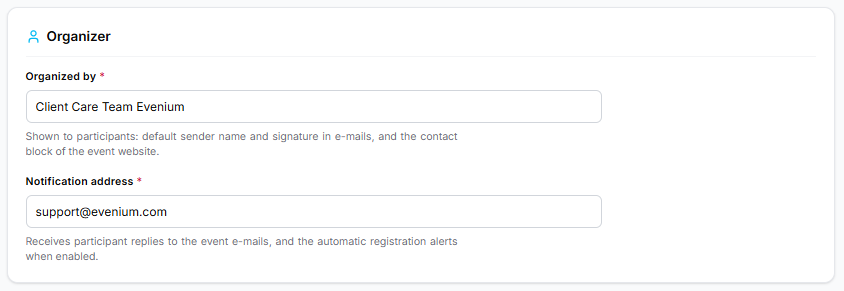
Organizer information: the organizer name appears by default as the sender and in the email signature.
Notification address: the address that will receive participant replies sent from the platform.
Modules: activate the options subscribed under your Evenium contract (for any questions regarding your options, contact our team).
STEP 3 : Finalize
Click Create event.
Your event is now ready to be configured!
Articles that might interest you: