
Why is it useful?
The image slideshow allows you to create a carousel directly within your site content or as a banner. No more managing images one by one or section by section: you can organize and display your visuals dynamically in a single step, making your site more attractive and engaging for your participants.
How does it work?
Where can you add a slideshow?
The image slideshow can be added to the following sections of your website:
Image

Text + Image

Website banner

Activating the slideshow
In each of these sections:
Enable the “Slideshow” feature

Click “Add media” to upload your images

Customizing images and the slideshow
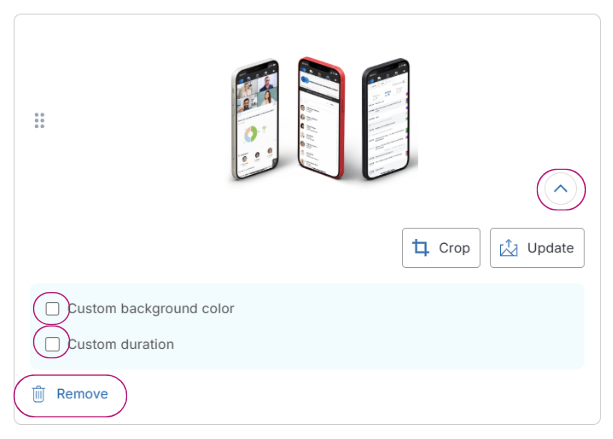
Once your media is added, click the arrow at the bottom right of each image to access the following options:

Update the image
Crop the image
Customize the background color
Adjust the display duration
Delete the image
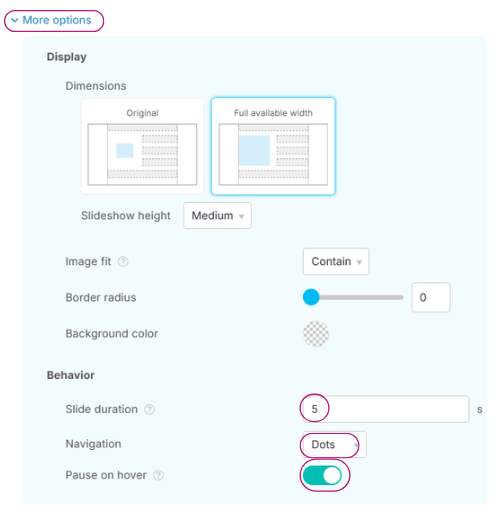
You can also modify the slideshow behavior by clicking “More options”:
Set the display duration for each slide
Choose the navigation type (dots, arrows, or none)
Enable pause on hover
Displaying the slideshow
Once the slideshow is set up:
Images will scroll automatically
Participants can also navigate through them manually using their mouse