
Why is this useful?
Are several people managing your event, and do you need all team members to receive your participants' replies?
This new feature is made for you!
The first step is to go to the interface where you can configure the notification email address.
Go to the Configuration > General Settings.
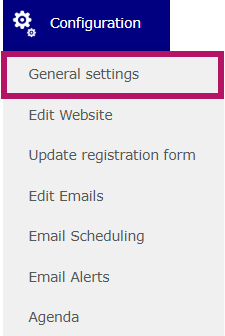
Then, go to the Organizer tab.

You will see the predefined notification email addresses that were entered when the event was created.

You can now define multiple notification email addresses by clicking Add. 
All the email addresses listed here will receive participants’ replies to the emails.
⚠️ Alert messages (which can be configured under Configuration > Email Alerts) will only be sent to the primary email address(es).
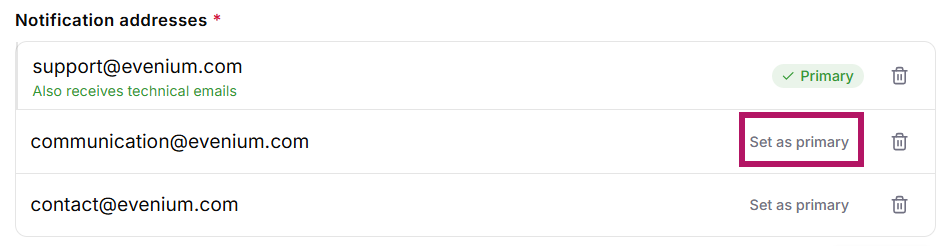
- How to change the primary email address
If you want to set one of the email addresses as the primary email address, simply click here:
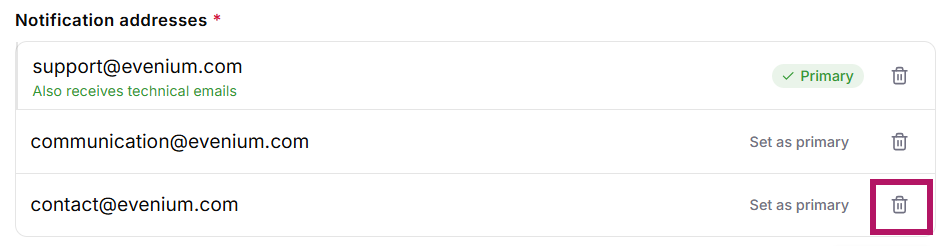
How to delete an email address :
If you want to delete an email address from the list, click here:
Make sure to save the page before leaving it.