
Why is this useful?
By customizing the accompanying guest question on your registration form, you adapt your communication to the specific needs of your event and collect more relevant information. This ensures a clearer and more consistent registration experience for your participants.
How does it work?
Configuration steps:
Go to the Configuration → Update registration form tab
Click on the question “Will attend / Will not attend”

Select “Ask for the number of accompanying guests”*
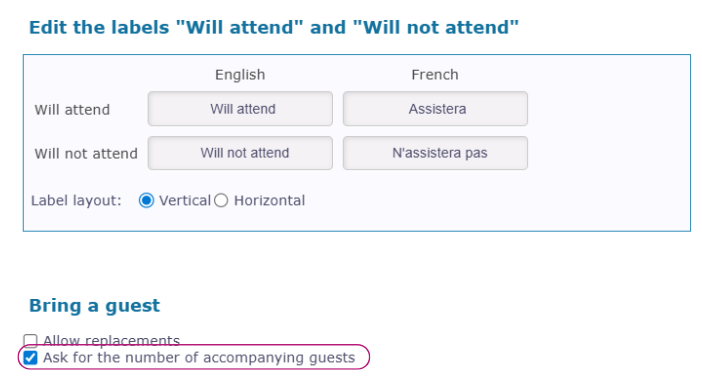
If only one accompanying guest is allowed:
Customize the question label in all the languages of your event.
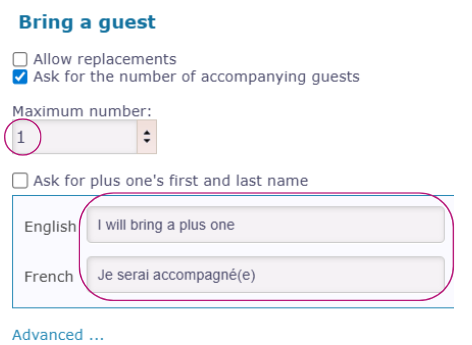
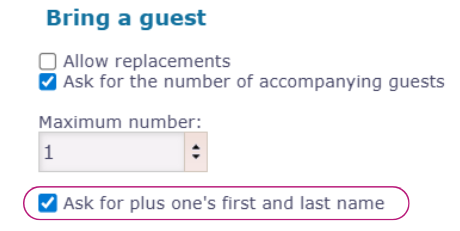
You can request the accompanying guest’s first and last name by checking the corresponding box.
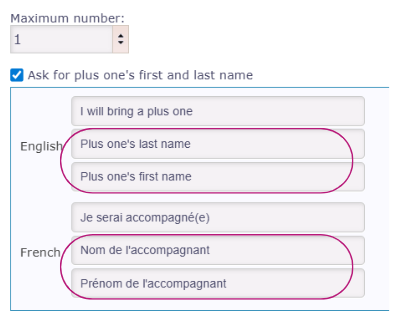
Those field labels can also be customized.
If multiple accompanying guests are allowed (up to 10):
You can only customize the first question by clicking “Customize label”: “Number of accompanying guests:”
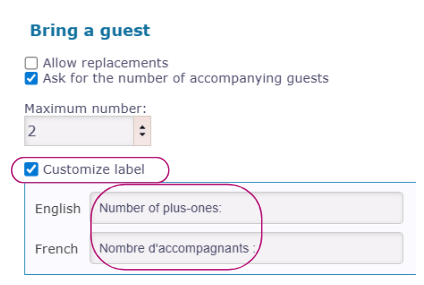
⚠️ To request the first and last names of multiple accompanying guests, you must:
Create custom fields for First Name and Last Name
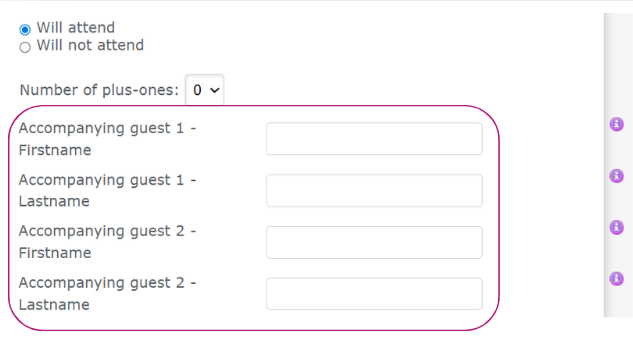
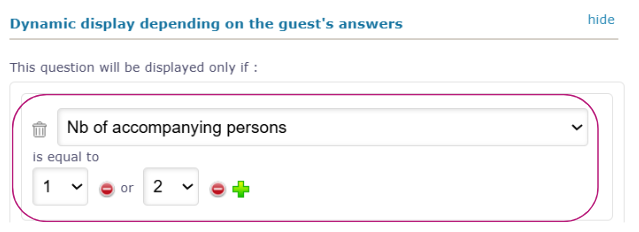
Set up display conditions based on the number of accompanying guests selected
In the example below:
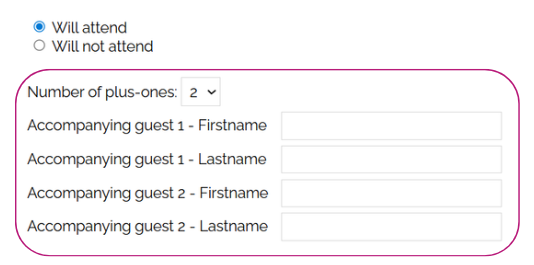
The field “Accompanying Guest 1 – First Name” is displayed only if the participant indicates they will attend with 1 or 2 accompanying guests.
On the participant side:
On the form, the question appears according to the selected configuration.
If one accompanying guest is allowed:
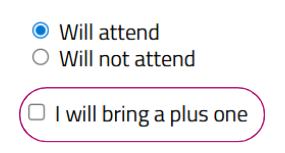
If more than one accompanying guest is allowed:
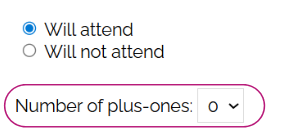
The participant can indicate whether they will attend with accompanying guests and, if applicable, enter the requested first and last names.
If one accompanying guest:
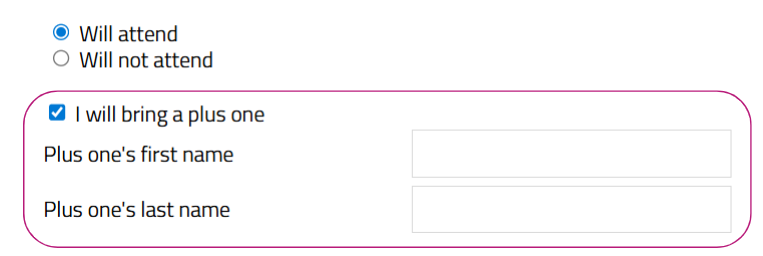
If more than one accompanying guest:
On the back-office side:
You can see whether a participant is accompanied via the “Num.Persons” column:
1 = participant attending alone
more than 1 = participant attending with one or more accompanying guests

If 1 accompanying guest:
You can add the columns Accompanying Guest Last Name and Accompanying Guest First Name so that this information appears on the participant’s row in the table.

If multiple accompanying guests:
Search in your columns for the custom fields created for the accompanying guests’ first and last names.

Note : Accompanying guests do not appear in your guests’ list as independent attendees. They are listed only on the accompanied participant’s row.
As a result:
No email can be sent to them
If you use the OnSite module, accompanying guests will not be listed there either
Advanced accompanying guest management:
To manage a large number of accompanying guests or benefit from additional features, contact the Evenium support team.
By phone: +33 1 47 70 90 35
By email : support@evenium.com
You may also subscribe to the “Accompanying Guest Management” module.