
Why is this useful?
With a single import, all tickets are automatically assigned to the correct participants—no manual data entry required. No more processing documents one by one or participant by participant: you save valuable time and can send your emails with tickets attached in just a few minutes.
How does it work?
⚠️ Please note: This feature is only available to users who have subscribed to the “Individual Transport Plan Validation” module.
It is an additional option with an extra cost. For more information, please contact our client support team:
Email: support@evenium.us
Phone: +33 1 47 70 90 35
Once registrations are open and transport requests have been collected:
Go to the Participants tab.
Click on Assign Files.

Files Selection:
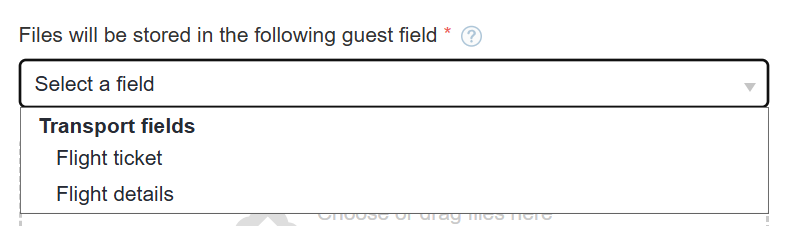
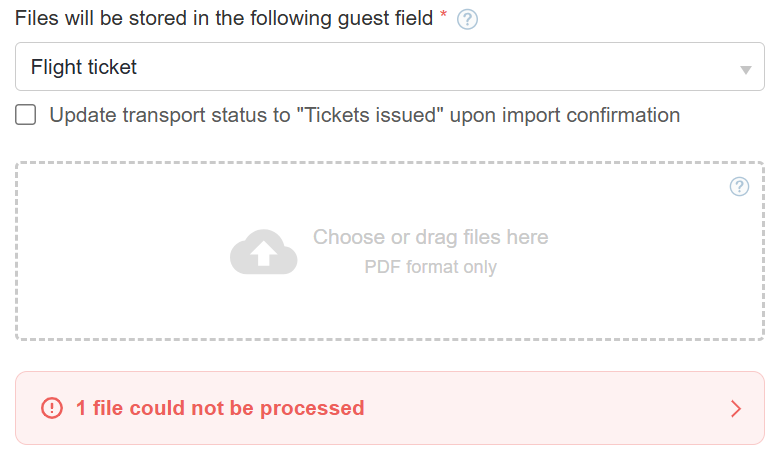
Choose the storage field for the imported file:
Flight ticket
Flight details
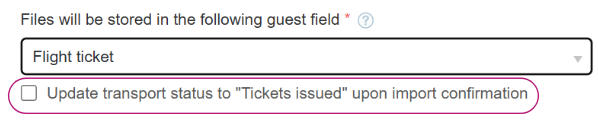
Automatic update option
You can enable the option to automatically update participants’ transport status to “Ticket Issued” as soon as the tickets are uploaded.
⚠️ Important: No email will be sent automatically to participants.
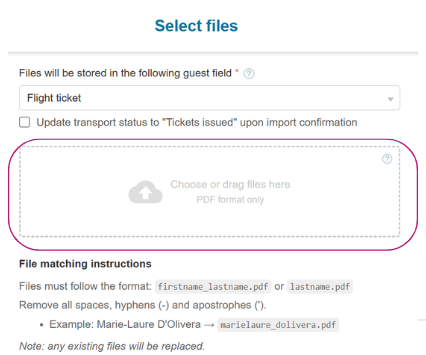
Adding documents:
Drag and drop or select your files in the designated area.
Once uploaded, they will appear there.
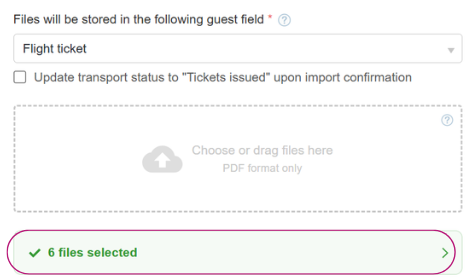
Please note: if a file is incorrectly named, you will receive an error message.
Start the import
Click Next to begin the import process.

Assignment summary page before import:
The platform will display:
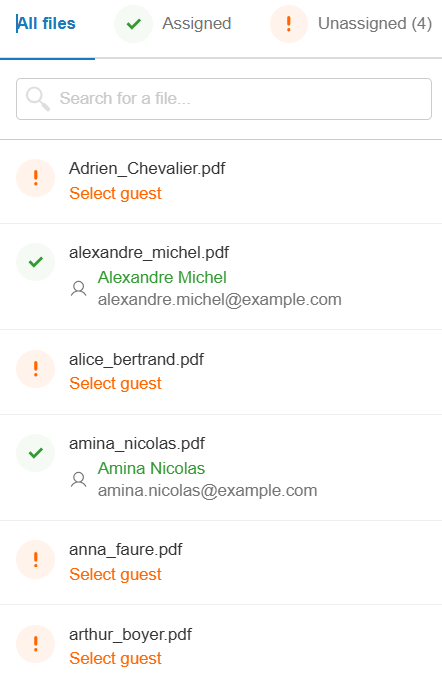
Assigned: Documents automatically linked to participants
Unassigned: Documents not linked (for example, if the participant is not in “Confirmed” status or does not exist in the database)
“Assigned” Tab
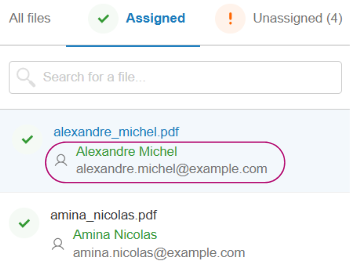
You will see the list of documents with the associated participant’s name.
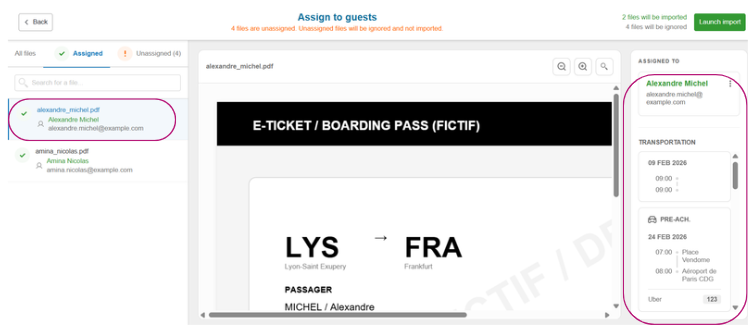
By clicking on the name, you can access the participant’s complete transport information summary:
Left: document name and associated participant
Center: document preview
Right: participant’s transport plan
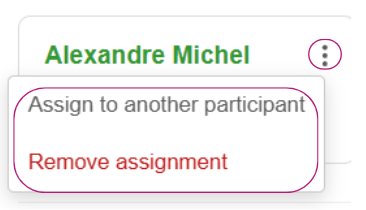
If you need to change the assignment, click on the three horizontal dots and choose:
Assign to another participant
Remove assignment
Please note: if there is an error in a participant’s transport plan, it cannot be corrected here. You must return to the Guests tab and update the information directly in the participant’s profile.
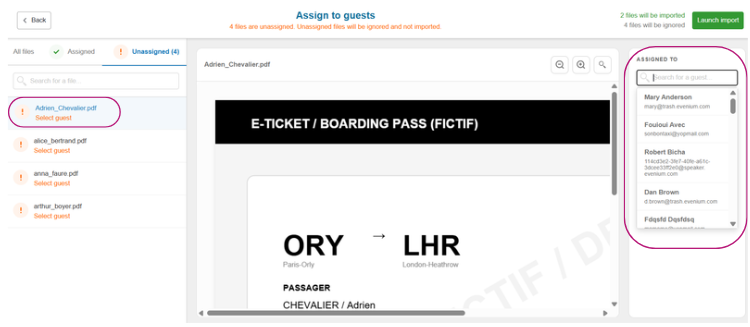
“Unassigned” Tab
You can view unassigned documents:
Left: name of the document not yet associated with a participant
Center: document preview
Right: option to assign a “Confirmed” participant from the database
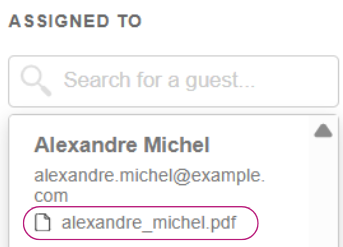
If a file is labeled lastname_firstname.pdf, it means a document has already been assigned to that participant in the current import.
⚠️ A document that is not assigned to a participant will not be imported.
Finalizing the import:
Once the assignments have been verified, click Launch import.
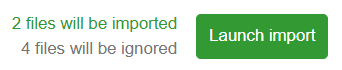
A confirmation message will indicate that the files have been successfully imported.
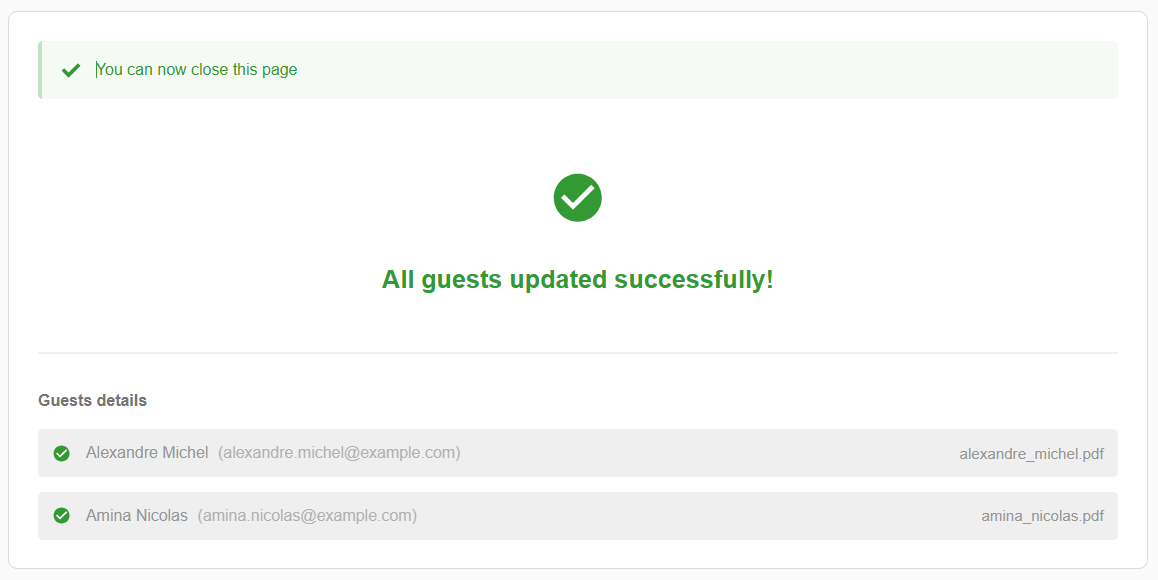
After the import:
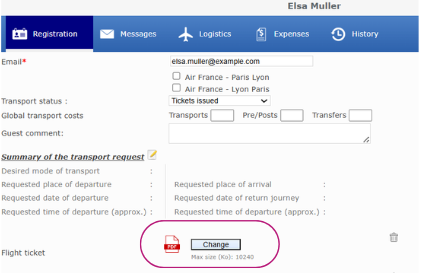
In the Guests tab, you can verify that the transport status has been updated and that the document(s) have been properly imported.

In the participant’s profile, the imported ticket will be visible.
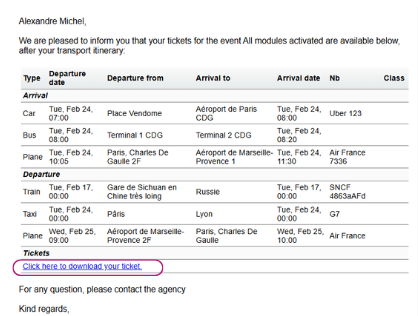
You can select your participants and send them the email “Transport – Tickets Sent”, in which the imported documents are available for download.
Required file format:
Files must strictly follow the format:
firstname_lastname.pdf
or lastname.pdf
⚠️ Remove all spaces, hyphens (-), and apostrophes (’).
Example:
Marie-Laure D'Olivera → marielaure_dolivera.pdf
Please note:
Any existing file will be replaced.
Import is only possible for participants with Confirmed status.