
Why is it useful?
Event dashboards allow you to monitor your event’s key metrics in real time: confirmed attendees, checked-in participants, pending registrations, participation rates, and more.
Thanks to this centralized and visual overview, you can quickly identify trends and adjust your event organization more effectively before, during, and after the event.
How does it work?
Accessing statistics
From your back office, you can view your event statistics:
Under the Overview tab, click View analytics
Or
Go to Overview > Statistics
You will then access an overview of your event’s registrations and attendance data.
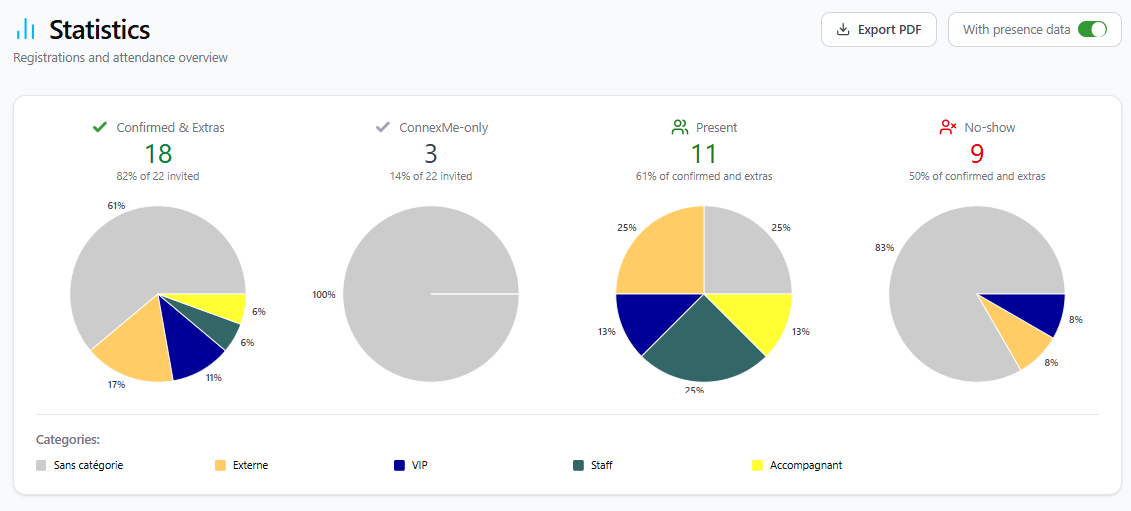
These statistics can be limited to registration data only, or can also include attendance data (available only if you have subscribed to our check-in app Evenium OnSite) by enabling the corresponding feature below:
Note: Once your event has ended, the statistics module will automatically display this screen with the Show Attendance option enabled.
Available Statistics Types
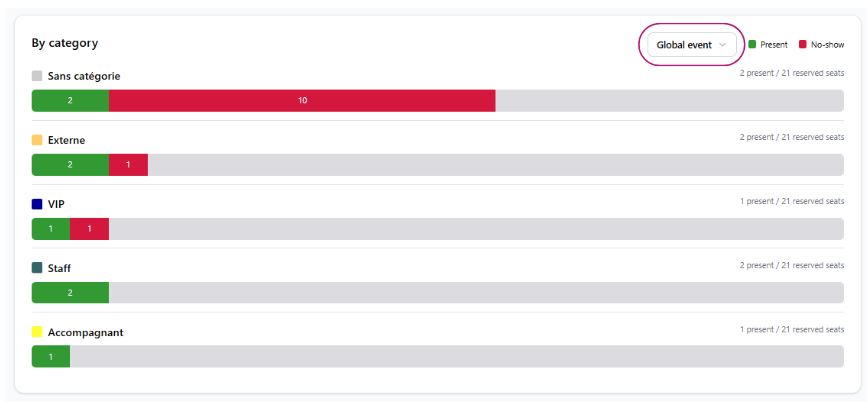
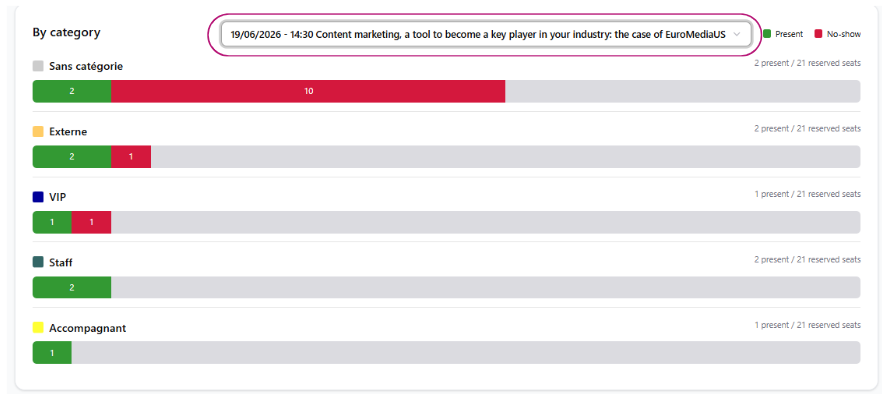
1. Statistics by Category
You can view statistics:
For the entire event
Or
By session
2. Statistics by Session
Detailed session statistics allow you to analyze the performance of each session within your event.
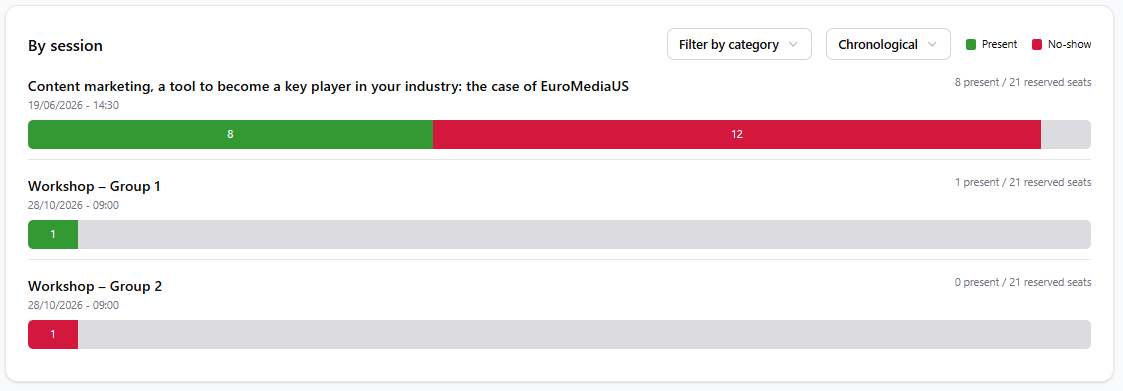
Several filters are available to facilitate your analysis:
Chronological order
Number of registrations (ascending)
Number of registrations (descending)
Number of attendees (ascending)
Number of attendees (descending)
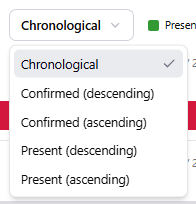
You can also filter results by category.

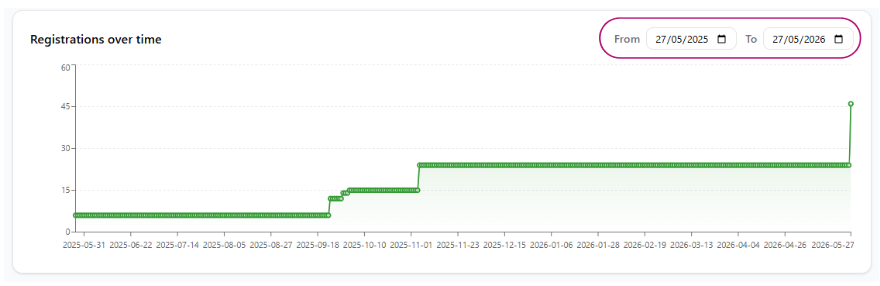
3. Registration over time
The Registration over time chart allows you to visualize registration growth over a selected period.
You can customize the analysis dates to obtain statistics tailored to your needs.
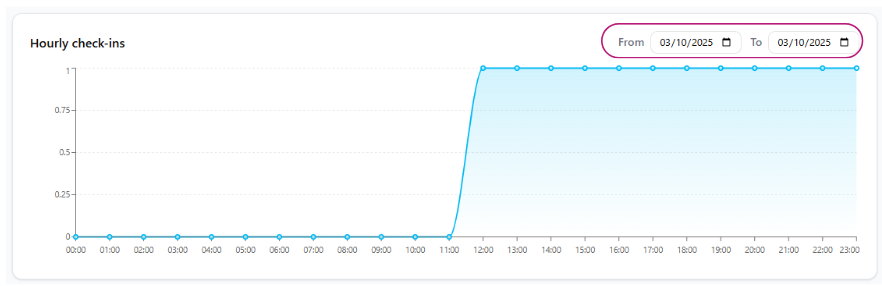
4. Hourly Check-ins Trends
The Hourly Check-in Trends chart helps you analyze participant arrivals throughout the event.
The analysis dates can also be customized.
Exporting Statistics
All charts and statistics can be exported in PDF format by clicking the dedicated export button.
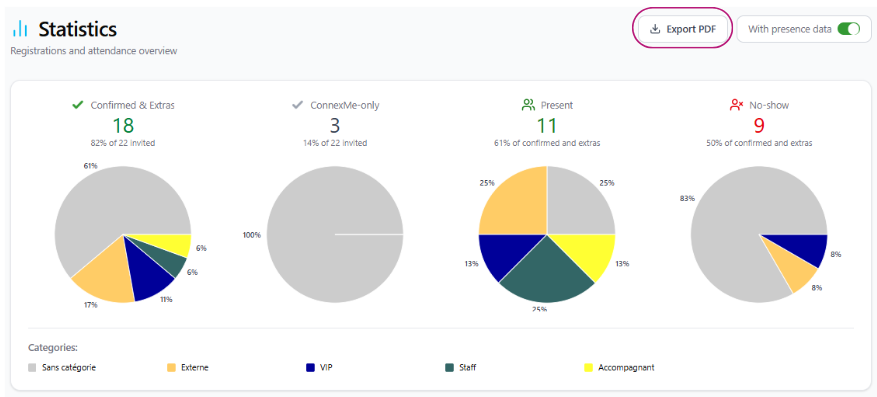
This makes it easy to share your analyses with your teams or clients.
Tip: Customize Category Colors in Charts
You can customize the colors associated with each category to improve the readability of your statistical charts.
To do so:
Go to the Configuration tab.
Click Edit Registration Form.
Select the Category field.
Define the desired color for each category.
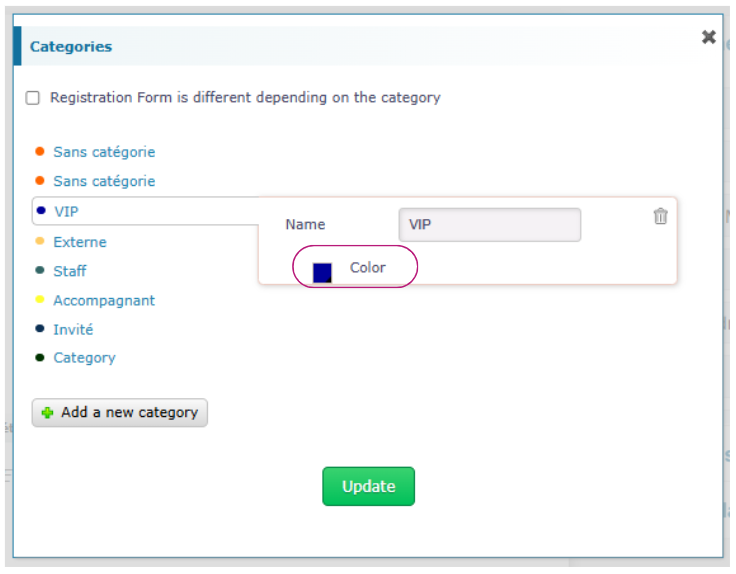
The configured colors will automatically be applied to the charts available under Overview > Statistics.